domingo, janeiro 04, 2015

Restore Lost Functionality on Your Unlocked Xperia Device - XDA Forums

Restore Lost Functionality on Your Unlocked Xperia Device - XDA Forums


Restore Lost Functionality on Your Unlocked Xperia Device

z3
If you unlocked your bootloader on a recent Sony Xperia device, you probably know that the potential loss of warranty is not the only disadvantage you have to accept. Another fairly hidden issue is related to various proprietary features such as the X-Reality color mangement, BIONZ image processor and the active noise cancelling techniques.
Once you decide to unlock your bootloader, the process also removes a piece of data referred to as the DRM keys. These are tied to various services (such as streaming video and the like) offered by Sony but are also required for the features mentioned above to work properly. Put simply, once the keys are gone, you’ll face issues such as decreased low light camera image quality and the lack of the X-Reality mode.
However, XDA Recognized Contributor jimRnor is here to help. He worked on a mod that restores most of the lost functionality through edited system files. For those of you interested in how to get back your features, head over to the thread. Make sure to read everything carefully and flash the provided zip file in your recovery as detailed.
For the more technically interested people, I dug a bit deeper and uncovered in detail how this mod works – and more importantly, what this actually means for owners of recent Xperia devices. So let’s start with what exactly is touched by the mod. The contents of the zip are mostly modified system files, most of them being code libraries, but also some binaries and an Android Package file. Here are some examples:
  • libdrmdecrypt.so
  • libdrmframework.so
  • libdrmdiag.so
  • drmserver
  • credmgrd
  • CredentialManagerService.apk
As you can see, all those files are in some way related to the DRM services of your device. While not really surprising, the sheer amount of modded files (more than 30) stands out quite a bit. Another important point to note is that nothing else besides the system files is being modified, no changes to the TA partition or other things like that. The mod solely relies on modifications to your system partition.

segunda-feira, dezembro 29, 2014

OpenVPN tweaks after install

[SOLVED] OpenVPN working in Subnet but can't access internet


echo "1" > /proc/sys/net/ipv4/ip_forward

/etc/sysconfig/iptables
-A POSTROUTING -s 192.168.10.0/24 -j MASQUERADE
-A POSTROUTING -s 192.168.9.0/24 -j MASQUERADE
-A POSTROUTING -s 192.168.11.0/24 -j MASQUERADE
-A POSTROUTING -s 192.168.15.0/24 -j MASQUERADE -o eth0
-A POSTROUTING -s 192.168.0.0/24  -j MASQUERADE


I need some help configuring OpenVPN on Centos 7 using firewalld.
I used iptables on Centos 6.5 and only had to add the following lines to /etc/sysconfig/iptables:
-A POSTROUTING -s "10.0.0.0/24" -o "wlan0" -j MASQUERADE 
-A FORWARD -p tcp -s 10.0.0.0/24 -d 0.0.0.0/0 -j ACCEPT 
run the command: echo 1 > /proc/sys/net/ipv4/ip_forward 
open port 443.
Use the firewall-cmd command.
Assuming you're opening the firewall up to OpenVPN on the default zone, carry out the following commands. If you are running it on a non-default zone, then add --zone= to the commands.

First, list what's currently open:
# firewall-cmd --list-services
http https ssh
Next, add the openvpn service:
# firewall-cmd --add-service openvpn
success
A quick check:
# firewall-cmd --list-services
http https openvpn ssh
The above will allow openvpn to work, which you can now test. However, it won't last over restarts. To make it permanent, add the --permanent option:
# firewall-cmd --permanent --add-service openvpn`
success
Note that this last command doesn't open the port until the next restart, so you need to use both commands.
Finally, add the masquerade:
# firewall-cmd --add-masquerade
success
And make it permanent after a restart:
# firewall-cmd --permanent --add-masquerade
success
Confirm it:
# firewall-cmd --query-masquerade
yes
Note that if your incoming OpenVPN connection is in a different zone to your Internet facing connection the masquerade should be on the latter and you'll need to use the --zone=option with the --add-masquerade commands.

quarta-feira, dezembro 24, 2014

Software :: SendEmail - Send email with this free command line email client

Software :: SendEmail - Send email with this free command line email client


sendEmail script for bash in linux


An Email Program for Sending SMTP Mail from a Command Line


About  |  Download  |  Installation  |  TLS  |  FAQ  |  Releases  |  Comments 
About SendEmail
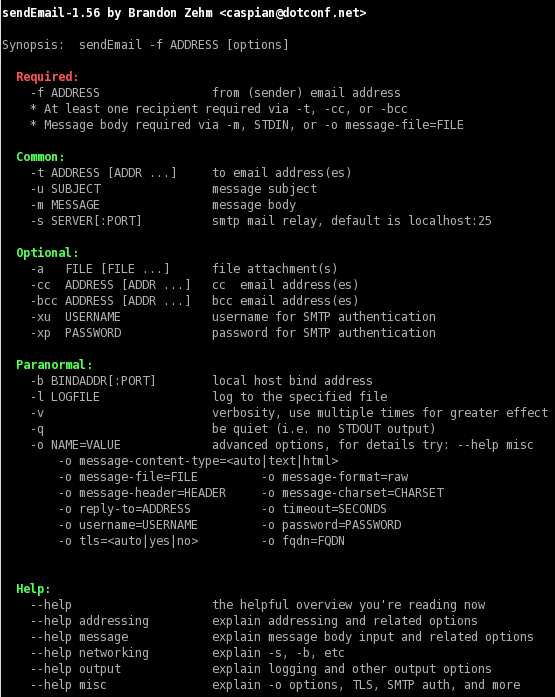
SendEmail is a lightweight, command line SMTP email client. If you have the need to send email from a command line, this free program is perfect: simple to use and feature rich. It was designed to be used in bash scripts, batch files, Perl programs and web sites, but is quite adaptable and will likely meet your requirements. SendEmail is written in Perl and is unique in that it requires NO MODULES. It has an intuitive and flexible set of command-line options, making it very easy to learn and use.
SendEmail is licensed under the GNU GPL, either version 2 of the License or (at your option) any later version.
[Supported Platforms: Linux, BSD, OS X, Windows 98, Windows NT, Windows 2000, & Windows XP]

Download

Official Release: sendEmail-v1.56.tar.gz    (29kb Sep 29th, 2009)    Changelog    Screen Shot

Windows Download:
Free sendEmail.exe for Windows. To use simply run sendEmail.exe from a console / command line.
sendEmail-v156-notls.zip   (677kb Sep 29th, 2009)   No TLS support 
sendEmail-v156.zip   (1.4mb Sep 29th, 2009)   TLS supported 

RPM Package: sendEmail rpm